
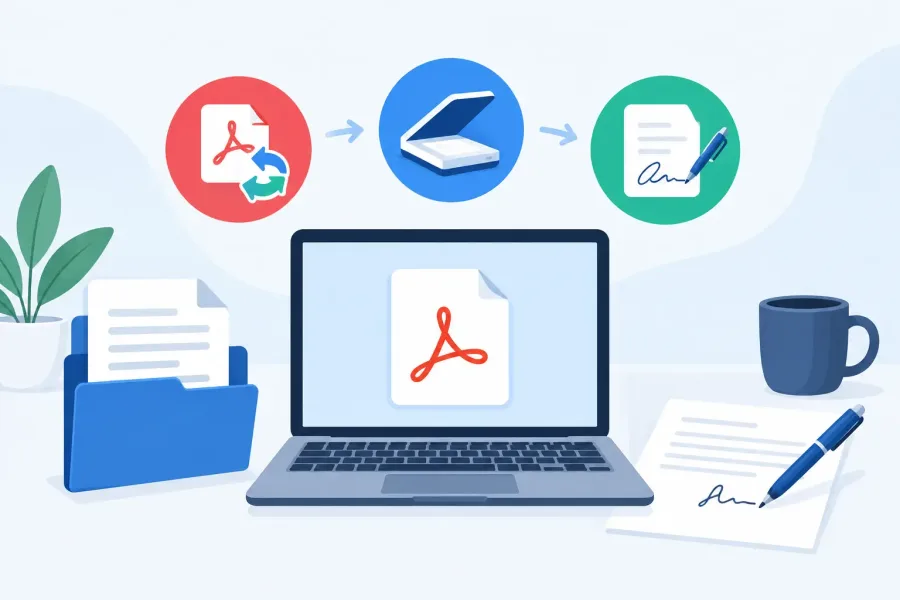
A work order arrives as a PDF. An inspector needs a signed report before leaving the site. A printed spec sheet needs to become a searchable file, not another photo buried in the camera roll. The best way to convert PDFs to other formats, scan PDF paperwork, and sign documents is to use the right tool for the job and keep the original file intact.
For electricians, inspectors, apprentices, and other field professionals, PDF handling is not office busywork. It is part of getting documentation right. The same is true for parents and educators saving worksheets, permission slips, and completed assignments. A clean process saves time later.
Convert PDFs to the format you actually need
PDF is built to preserve a document's layout. That makes it dependable for drawings, reports, worksheets, and forms, but it also means editing can be less straightforward than editing a Word document. Before converting anything, decide what you need from the new file.
If you need to revise paragraphs, convert the PDF to an editable document format such as DOCX. If you need tables for estimates, inventory, or calculations, convert only the relevant pages to XLSX or CSV and check every column afterward. Tables with merged cells, handwritten notes, or unusual layouts often need cleanup after conversion.
For a page from a manual, plan set, or training handout, an image format such as JPG or PNG can be more useful. Images are easy to place in a message, markup, or job folder. Use PNG for text, diagrams, and line art when clarity matters. Use JPG when file size matters more than perfect detail.
Do not expect every conversion to be perfect. A PDF generated from a modern document usually converts well. A scanned PDF is just a collection of page images until optical character recognition, often called OCR, reads the text. OCR can make a document searchable and selectable, but it can confuse faded lettering, handwriting, symbols, and small dimensions. Always compare critical numbers, model names, and code references with the original.
Scan paperwork into a usable PDF
A phone camera can capture a document, but a proper document scan should look flat, readable, and complete. Place the page on a dark, uncluttered surface with even light. Avoid shadows from your hand or overhead lighting, especially around signatures and fine print.
Use a scan mode that finds page edges, straightens the image, and combines multiple pages into one PDF. Review the result before saving it. Cropped corners, glare over a checkbox, or a missing second page can turn a quick scan into a follow-up call.
For trade documentation, name files so they can be found without opening them. A format such as `2026-10-06_SiteName_InspectionReport.pdf` is more useful than `scan_0047.pdf`. Keep related photos separate from the signed report unless the recipient specifically requests one combined file.
When the paperwork contains customer details, plans, test results, or student information, think about where the scan is processed. Some scanner apps upload files to a remote service for OCR or conversion. That can be convenient, but it may not fit a sensitive job or a low-connectivity site. Offline-first tools keep working in basements, mechanical rooms, and rural locations, while reducing unnecessary file sharing.
Sign PDFs without creating a documentation mess
There are two common ways to sign a PDF. The first is a visible signature placed on the page, usually drawn with a finger or stylus, typed, or added from a saved signature image. This is practical for many acknowledgments, completed work orders, and internal forms.
The second is a digital certificate signature. It can verify whether a signed file was changed afterward and identify the certificate used to sign it. That extra verification is useful when a contract, regulated workflow, or organization specifically requires it. It also takes more setup, so it is not automatically the best choice for every field report.
Before signing, fill in dates, checkboxes, and required fields first. Then save a signed copy with a clear filename. If someone else must sign, send an unsigned version or use a process that tracks each signer. Editing a visible signature afterward can create confusion, and editing a certificate-signed file can invalidate the signature.
A signature image is not the same as identity verification. Whether it is acceptable depends on the document, the receiving organization, and applicable requirements. For permits, contracts, legal releases, or compliance records, confirm what signature method is required before work begins.
A simple PDF workflow that holds up
Keep the original PDF, make a working copy for conversion or markup, and save the final signed version separately. That gives you a clean record if a customer, supervisor, teacher, or inspector asks what changed.
For most people, the practical setup is simple: scan clearly, use OCR when search matters, convert only when the destination format has a real purpose, and sign only after the document is complete. A PDF file should make the next step easier, whether that means closing out a job, sending an estimate, or filing a finished worksheet.