
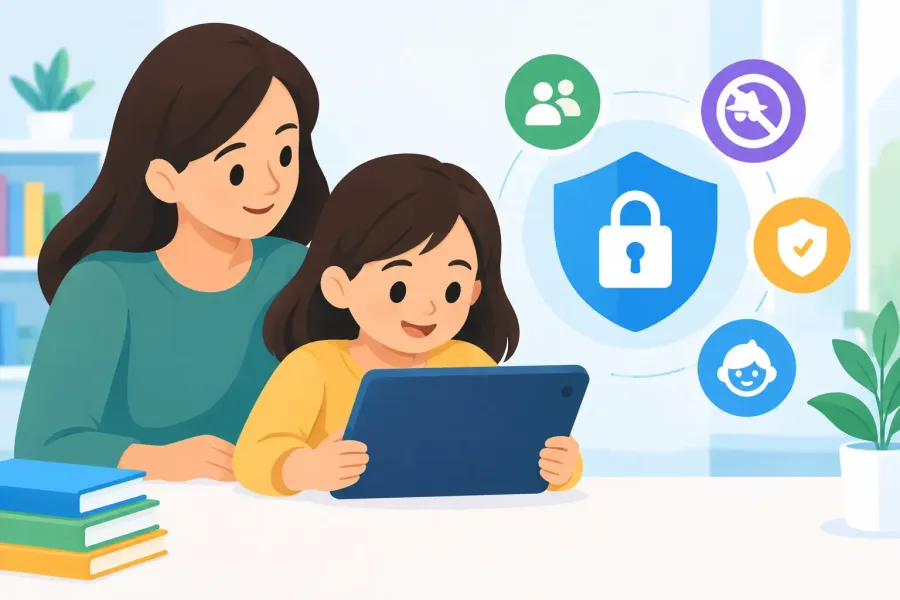
A child opens a math app to practice multiplication and, two minutes later, an ad is asking them to download another game or make a purchase. That is not a small distraction. It is exactly why educational app safety should be part of the buying decision, not an afterthought once an app is already on a family device.
For parents, caregivers, and teachers, the goal is simple: give kids useful practice without turning screen time into a stream of ads, tracking, prompts, and random web content. A good learning app should stay focused on the lesson. It should also work when the Wi-Fi is unreliable, when a child is using a shared device, and when an adult cannot sit beside them every minute.
Educational App Safety Starts With the Business Model
Many free apps need to earn money somehow. That can mean advertising, in-app purchases, subscriptions, sponsored content, or data collection used for marketing. None of those models automatically makes an app unsafe, but each creates a question parents should ask: what is the child expected to do inside this app besides learn?
Advertising is often the clearest problem. Ads can interrupt a lesson, pull a child into another app, or show material that does not fit the family’s standards. Some ads are designed to look like game buttons. Younger children may not recognize the difference between an activity they are supposed to complete and a promotion they are being urged to tap.
An ad-free app removes that entire category of interruption. It does not guarantee a great educational experience, but it gives the app a cleaner incentive: help the learner use the content. This is especially valuable for K-8 students, who usually benefit more from a calm, repeatable routine than from a reward system built around constant pop-ups.
Subscriptions deserve a close look, too. A subscription may be reasonable when an app provides regularly updated content or a large instructional library. But parents should know the renewal date, what happens when a subscription ends, and whether every advertised lesson is actually included. A one-time purchase can be easier to understand for a focused subject tool, particularly when the app works offline and does not depend on a continuing service.
Check What the App Collects
An educational app does not need a child’s full identity to teach addition, fractions, vocabulary, or spelling. Before installing, review the app’s store disclosures and privacy information. Look for a plain answer to what data is collected, why it is collected, and whether it is shared with other companies.
Be cautious when a basic learning app requests permissions that do not match its purpose. A flashcard app may not need location access. A worksheet generator may not need a microphone. A math practice app generally should not require a contact list, camera access, or access to files unrelated to the child’s work.
Some data collection is functional. An app may save quiz scores, store an adaptive study plan, or remember a learner’s progress on the device. The key distinction is whether the information stays connected to the learning experience or becomes part of an advertising and profiling system.
Offline-first design makes this easier to evaluate. When lessons, questions, read-aloud features, and progress tracking work directly on the device, there is less need for constant background communication. Offline access also helps in practical ways. A child can work on multiplication in the car, at a grandparent’s house, or during an internet outage without being pushed toward unrelated online content.
Look for Boundaries, Not Just Bright Colors
A kid-friendly design is more than large buttons and cheerful characters. The app should make it hard for a child to leave the learning area by accident. External links, social sharing buttons, app-store promotions, and purchase screens should be limited or placed behind a parent gate.
A useful parent gate asks for an adult-level action before opening settings or purchases. It might require solving a simple math prompt, entering a passcode, or holding a button. The exact method matters less than the result: a child should not be able to change account settings, spend money, or navigate to the open web with a casual tap.
Content boundaries matter as well. A strong educational app clearly identifies the grade range and skill level it supports. A second grader practicing basic multiplication needs a different experience from a middle school student working through pre-algebra. Age-appropriate instruction prevents frustration, while clear topic organization lets adults see what a child is actually practicing.
Gamified learning can be helpful when it supports the lesson. Points, friendly challenges, and small rewards can encourage another round of practice. The trade-off appears when the game layer becomes louder than the instruction. If the child is mainly chasing animations, mystery boxes, or unrelated rewards, the app may be training attention rather than building a skill.
Test the Learning Experience Before Handing It Over
Store screenshots and descriptions provide a starting point, but they do not tell the whole story. Once an app is installed, spend a few minutes using it the way your child will. Open a lesson, answer questions, make an intentional mistake, and see what feedback appears.
Good feedback explains enough to help the learner try again. For example, a fractions activity might show why two denominators need a common base before adding. A weak app simply flashes red, removes a heart, or moves on. Kids need correction that teaches, not a scoreboard that tells them they lost.
Also test how the app handles difficulty. Adaptive study plans can be useful when they respond to real performance, offering extra practice on weak skills without endlessly repeating material a learner has already mastered. Still, adaptive tools should not feel mysterious. Parents and teachers should be able to see the subject, level, and progress without digging through confusing menus.
For younger learners, read-aloud support can make an app more accessible. For families who use Spanish at home, language options can make practice more useful and inclusive. Printable worksheets are another practical benefit because they take learning off the screen and give adults a simple way to review a child’s work.
Set Up the Device for Safer Use
Even a carefully designed app works best with basic device safeguards. Use the child or family settings available on the Android device to restrict new app installs, require approval for purchases, and limit access to unsuitable content. If several children use one tablet, separate profiles can prevent progress and settings from being mixed together.
Turn off payment methods on a child’s device when possible. A parent gate inside an app is helpful, but device-level purchase approval provides another layer of protection. Review installed apps occasionally, especially after a child has borrowed a phone or tablet from another family member.
Notifications deserve attention. An educational app may send a useful reminder to continue a study plan, but frequent notifications can become pressure or distraction. Disable any alerts that do not serve the child’s routine. Learning tools should fit family schedules, not demand attention all day.
It is also worth discussing a simple rule with kids: if an app asks for a name, a photo, a message, or permission to open something outside the lesson, stop and ask an adult. This is not about making children afraid of technology. It is about helping them recognize that a learning activity and a request for personal information are different things.
Choose Focused Tools Over Endless Feeds
The safest educational app is often the one with a clear job. A multiplication practice app should teach multiplication. An Algebra 1 tool should provide instruction, quizzes, and useful review. It does not need a social feed, a marketplace, or a flood of content chosen by an algorithm.
Focused tools also make it easier to measure whether screen time is paying off. Can the child complete a few more problems independently? Do they understand a missed question after seeing the explanation? Are printable exercises getting easier? Those outcomes matter more than a long streak or a pile of digital badges.
TapForge Studios builds its Mathlings apps around that kind of practical use: ad-free, offline-first math practice with lessons, quizzes, adaptive study support, read-aloud options, and printable reinforcement. The point is not to keep kids tapping forever. It is to give them a useful place to practice and then carry that confidence into class, homework, and everyday problem-solving.
A safe app should feel almost boring in the best possible way: no surprise charges, no strange detours, no pressure to keep clicking. Just clear instruction, age-appropriate practice, and enough room for a child to learn at their own pace.